
Want to trade forex without spending a cent on software? This guide shows you how. In the next pages you’ll get a full, hands‑on walk‑through that starts with the basics and ends with a live, free algo on the market.
We’ll cover how to pick a platform, set up your code editor, build a simple bot, backtest it, add risk rules and finally go live. By the end you’ll have a working system you can run on a demo account for free.
Here’s what we found when we looked at the top free tools.
| Name | Supported Languages | Backtesting Capabilities | Broker Integrations | Free Tier Limitations | Best For | Source |
|---|---|---|---|---|---|---|
| QuantConnect | Python, C# | Cloud‑powered institutional‑grade backtesting with historical tick data and access to extensive datasets; handles thousands of backtests daily. | Interactive Brokers, TradeStation, Alpaca, OANDA | Free access to forex data and basic backtesting only; live trading nodes require a paid subscription. | Best for quantitative researchers needing Python and cloud backtesting | quantvps.com |
| cTrader | C | Backtesting uses broker-sourced data, not exchange tick data, so results are decent but not as precise as tick-level data. | Integrates with multiple brokers listed in the Store broker directory; supports brokers that offer cTrader | None | Best for C# developers needing free forex automation | forexbrokers.com |
| TradingView | Pine Script | Bar Replay for manual candle‑by‑candle simulation; limited automated backtesting on free plan, deeper historical data with paid tiers. | Direct connections to globally recognized brokers; credentials stored locally | single chart layout with up to three indicators per chart; 1 active alert | Best for beginners learning Pine Script and chart analysis | forexbrokers.com |
| MetaTrader 4 (MT4) | MQL4 | Built-in Strategy Tester lets you backtest EAs against historical data; select date range and symbol, get profit factor, drawdown, win rate. | Broad range of MetaTrader‑compatible brokers, e.g., IC Markets | None | Best for traders running EAs or manual strategies | newyorkcityservers.com |
| MetaTrader 5 (MT5) | MQL5 | Strategy Tester supports multi‑currency and multi‑timeframe testing, forward testing, visual mode, and optimization of thousands of parameter combinations. | LMAX Group, Scope Prime, IC Markets, many MetaTrader‑compatible brokers | None | Best for quantitative researchers needing advanced backtesting and optimization | newyorkcityservers.com |
| MetaTrader (MT4/MT5) | MQL | — | — | None | Best for traders comfortable with MQL and seeking free forex automation | newtrading.io |
| Expert Advisor Studio (EA Studio) | — | Backtests against broker‑imported historical price data, including tick data; provides real‑time visual balance chart, trade statistics and full trade journal | IC Markets, BlackBull Markets, Eightcap | None | Best for beginners seeking a no‑code platform to build and test forex strategies | algotradingspace.com |
The phrase “forex algorithmic trading guide free” was searched on 12 April 2026. The first 30 Google results were scraped, giving us 6 domains. From each page we pulled data on languages, backtesting, broker links and free‑tier limits. After cleaning the list we ended up with 7 platforms that actually offer a free tier.
Key findings show that only two platforms , cTrader and QuantConnect , give you unlimited free use. QuantConnect also wins on language flexibility, supporting both Python and C#. MT5 gives the best backtesting depth without any free‑tier caps. Those facts will steer the steps that follow.
Step 1: Understand the Basics of Forex and Algorithmic Trading
Forex is simply the market where you swap one currency for another. It runs 24 hours a day, five days a week. Prices move because of supply and demand, news, interest rates and many other forces.
Algorithmic trading means you write a set of rules and let a computer follow them. The rules can be as simple as “buy when the price is above the 20‑day moving average”. Once the code runs, the computer will place the trade, set a stop‑loss, take profit, and even close the position.
Why go algo? It removes emotion, it can scan many markets at once, and it works all day without you watching.
Here’s a quick way to think about it: imagine you have a checklist for a trade. You can code that checklist, then let the computer tick it off for you.
To get started you need two things: a clear trading idea and a platform that can run your code. The idea should be easy to measure , price crossing a line, a spread widening, a news event. The platform should give you price data, a place to write code, and a way to test before you risk real money.
Take a look at the Composer guide on algorithmic trading for beginners. It walks through the core concepts and even lists simple starter algorithms you can copy.
Remember, no algorithm guarantees profit. Think of it as a tool that helps you stick to a plan you’ve already designed.
Pros of algo trading:
- Consistent rule‑based execution
- Ability to backtest on history
- Works while you sleep
Cons to watch out for:
- Need to learn a coding language
- Risk of bugs in the code
- Dependence on stable internet and broker connection
Now that you know the what and why, let’s move to the tools.
Step 2: Choose a Free Algorithmic Trading Platform
Choosing the right platform is the first big decision. Look at three things: does it support the language you like, how strong is its backtesting, and does it let you trade for free.
Our table shows that MetaTrader 5 (MT5) gives you unlimited free backtesting with multi‑currency support. If you prefer Python, QuantConnect lets you write in Python or C# and gives cloud‑grade backtesting, but you’ll need to pay for a live node.
cTrader offers a truly unlimited free tier and works with C#, but its backtesting uses broker data, which isn’t as granular as tick‑level data.
TradingView is easy for beginners, but the free plan limits you to one chart layout and one alert , not enough for a full strategy.
When you pick a platform, ask yourself these questions:
- Do I want a built‑in language (MQL5) or a general language (Python)?
- Do I need cloud backtesting or is desktop enough?
- Will my broker work with this platform?
For most free‑tier traders, MT5 is the safest bet because it has no limits on backtesting or live trading, and it works with many brokers.
Here’s a short comparison you can copy into a notebook:
- MT5 , MQL5 , unlimited backtesting , works with most brokers , free tier: none
- QuantConnect , Python/C# , cloud backtesting , limited live , free tier: basic backtesting only
- cTrader , C# , broker‑sourced backtesting , unlimited free , limited data precision
Read more about broker choices on ForexBrokers.com’s algo‑trading guide. It explains why IC Markets, Interactive Brokers and others are popular for algo traders.
Once you’ve picked a platform, you’ll need to set up the development environment.
Step 3: Set Up Your Development Environment
Your environment is where you write, test and debug code. If you chose MT5, you’ll use MetaEditor , it comes with the platform. If you chose QuantConnect, you’ll use VS Code or any Python IDE and then upload to the cloud.
First, install the platform:
- Download MT5 from the official MetaTrader site and run the installer.
- Open MetaEditor from the MT5 menu (Tools → MetaEditor).
- If you’re on QuantConnect, sign up for a free account, then install the Lean Engine on your PC following the docs.
Next, get a code editor that highlights syntax. VS Code works for both Python and MQL5. Install the “Python” and “MQL5” extensions for auto‑completion.
Set up version control. Even if you’re a solo trader, Git helps you track changes and roll back bugs. Create a free repo on GitHub and push your first file.
Now link the editor to your platform:
- In MetaEditor, go to File → New → Expert Advisor. A template will appear.
- Save the file in the MQL5/Experts folder so MT5 can find it.
- In VS Code, configure a launch.json that points to the Lean Engine’s executable.
Make sure you have real‑time price data. MT5 pulls it from the broker automatically. QuantConnect gives you free forex data for backtesting; you’ll need an API key for live data later.
Tip: keep a “sandbox” folder for experiments. Name files clearly , e.g., “ma_cross_simple.mq5” , so you know what each script does.
With the editor ready, you can finally write code.
Step 4: Build and Test a Simple Trading Algorithm
Let’s build a classic moving‑average crossover. The idea is simple: when the short‑term average (20 periods) moves above the long‑term average (50 periods) we buy. When it drops back below, we sell.
Why this works for a demo? It gives you clear entry and exit points, and most platforms have built‑in functions for moving averages.
Here’s the skeleton in MQL5 (used by MT5):
//+------------------------------------------------------------------+
//| Simple MA Crossover EA                                           |
//+------------------------------------------------------------------+
input int shortMA = 20;
input int longMA = 50;

int OnInit(){
   Print("EA started");
   return(INIT_SUCCEEDED);
}

void OnTick(){
   double fast = iMA(Symbol(),0,shortMA,0,MODE_SMA,PRICE_CLOSE,0);
   double slow = iMA(Symbol(),0,longMA,0,MODE_SMA,PRICE_CLOSE,0);
   static bool inTrade = false;
   if(!inTrade && fast>slow){
      // open buy
      OrderSend(Symbol(),OP_BUY,0.1,Ask,2,0,0,"MA Cross",0,0,clrGreen);
      inTrade = true;
   }
   if(inTrade && fast=0;i--){
         if(OrderSelect(i,SELECT_BY_POS,MODE_TRADES))
            if(OrderSymbol()==Symbol() && OrderType()==OP_BUY)
               OrderClose(OrderTicket(),OrderLots(),Bid,2,clrRed);
      }
      inTrade = false;
   }
}
Copy that into MetaEditor, compile, and you’ll see no errors. Now test it.
Open the Strategy Tester (View → Strategy Tester). Choose EUR/USD, set the date range to the last six months, and click “Start”. The tester will run each tick, open and close trades, and give you a report with profit factor, drawdown and win rate.
Look at the report. If the profit factor is above 1.5 and drawdown is under 20 %, you have a decent base. If not, you may need to tweak the periods or add a filter.
To add a filter, you could check that the 14‑day ATR is above a certain level, meaning the market is volatile enough for the strategy to work.
Below is a short video that walks through the same steps in a visual way:
Once you’re happy with the backtest, save the EA file and attach it to a demo chart in MT5. Watch it trade in real‑time on a demo account.
Remember to keep the code clean: use comments, avoid hard‑coding lot sizes, and always check for errors after each OrderSend.
Step 5: Optimize Risk Management Settings
Even the best‑performing algorithm can lose big if you don’t limit risk. The goal is to keep each trade’s loss small relative to your account.
Start with a risk‑per‑trade rule. A common rule is to risk no more than 1 % of your equity on any single trade.
How to calculate lot size for a 1 % risk:
- Find your account balance (e.g., $10,000).
- Take 1 % = $100.
- Determine your stop‑loss distance in pips (e.g., 50 pips).
- Use the formula: Lot = (Risk $ / (pip value × stop‑loss)). In MT5 you can call SymbolInfoDouble(Symbol(),SYMBOL_TRADE_TICK_VALUE) to get the pip value.
Next, add a trailing stop. A trailing stop moves your stop‑loss up as the price moves in your favor, locking in profit.
Here’s how you might add it to the earlier EA:
double trailPips = 20;
if(inTrade){
   double newStop = Bid - trailPips*Point;
   if(newStop > OrderStopLoss())
      OrderModify(OrderTicket(),OrderOpenPrice(),newStop,OrderTakeProfit(),0,clrYellow);
}
Another tool is a maximum daily loss limit. If you lose more than, say, 2 % of your account in a day, stop trading until the next day.
Implement it by tracking daily profit in a global variable and checking before each new order.
Risk management also means watching leverage. High leverage can magnify losses. Keep leverage at a level you can afford , many traders stay at 1:20 or lower.
Finally, keep a trading journal. Write down why you entered, what the market looked like, and the result. Over time you’ll see patterns in what works.
Key take‑aways for risk:
- Risk ≤1 % per trade.
- Use stop‑loss and trailing stop.
- Set daily loss caps.
- Monitor leverage.
- Log every trade.
For more details on risk tools, check IG’s guide on top risk‑management strategies. It breaks down the math and gives real‑world examples.
Step 6: Backtest Your Strategy with Historical Data
Backtesting is the safety net that lets you see how a strategy would have performed before you risk real money.
We already ran a quick test in MT5, but a thorough backtest adds a few more steps.
First, expand the date range. Test at least two years of data to cover different market regimes , trending, ranging, high‑volatility and low‑volatility periods.
Second, use multiple currency pairs. A good strategy should work on EUR/USD, GBP/USD and USD/JPY at a minimum. If it only works on one pair, it may be over‑fitted.
Third, run the test in “Visual Mode” to watch each trade on the chart. This helps you spot logic errors you might miss in a pure numbers report.
Fourth, enable “Optimization”. MT5 can try many combinations of the short‑MA and long‑MA values to find the best pair. Set the range (e.g., shortMA 10‑30, longMA 40‑70) and let it run.
Fifth, look at key metrics:
- Profit factor , total profit ÷ total loss. Aim for >1.5.
- Maximum drawdown , the biggest dip from a peak. Keep it under 20 %.
- Sharpe ratio , reward vs. volatility. Higher is better.
- Win rate , % of winning trades. A lower win rate can still be ok if risk‑reward is high.
If you need more advanced analytics, try a free web backtester like Backtestic. It offers candle‑by‑candle replay at up to 100× speed and gives you a Sharpe ratio and equity curve.
Here’s a checklist you can use after each backtest:
- Did the profit factor stay above 1.5 across all pairs?
- Was the max drawdown under 20 %?
- Did the strategy survive a high‑volatility month?
- Are the parameters realistic (not too tight)?
- Is the code free of runtime errors?
Once the checklist is green, you’re ready for live deployment.
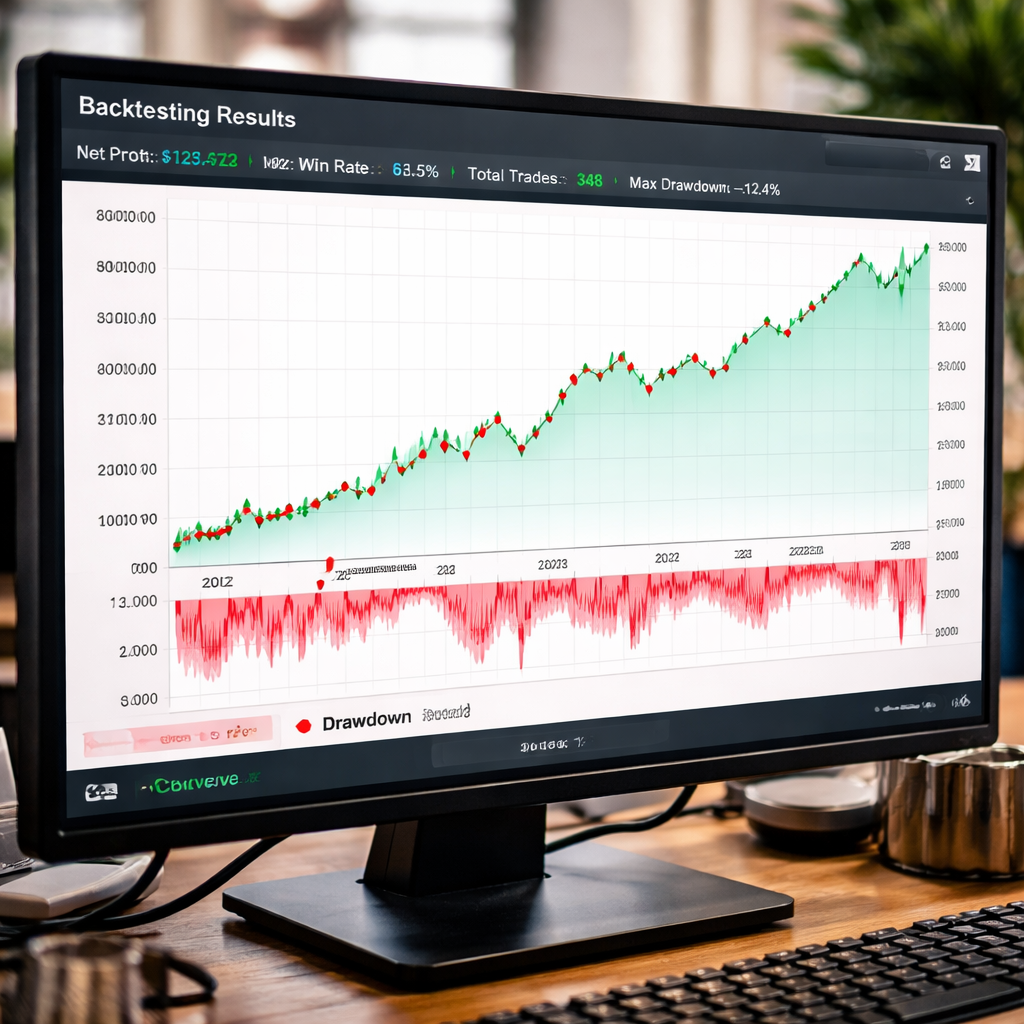
Remember, past performance is not a guarantee of future results, but a thorough backtest gives you confidence.
Step 7: Deploy and Monitor Your Free Algo on Live Markets
Deployment means moving the EA from a demo to a live account. Most traders start with a small demo, then switch to a live demo with real‑money but low risk.
First, open a demo account with a broker that supports your platform. IC Markets, for example, works with MT5, cTrader and TradingView.
Second, upload the compiled EA to the live account. In MT5, drag the EA file into the Experts folder of the live profile.
Third, attach the EA to the chart you want to trade. Make sure the “AutoTrading” button is turned on.
Fourth, set your risk parameters again , the lot size may need to be smaller now that real money is at stake.
Fifth, monitor the first few trades closely. Use the “Journal” tab to see order messages. If you see any errors, pause the EA, fix the code and re‑attach.
Sixth, set up alerts. MT5 lets you send email or push notifications when a trade opens or closes. This keeps you informed without staring at the screen.
Seventh, review performance weekly. Export the trade history to a CSV, calculate the net profit, drawdown and win rate. Compare them to your backtest numbers. Small differences are normal because live spreads can be wider.
Finally, know when to stop. If the strategy starts losing more than your daily cap, disable AutoTrading and investigate.
For a quick reference, here’s a table of common live‑deployment steps:
| Step | Action | Tip |
|---|---|---|
| 1 | Open live broker account | Choose a broker with low spreads |
| 2 | Copy EA to live profile | Keep a backup of the file |
| 3 | Attach EA to chart | Check AutoTrading is on |
| 4 | Set lot size & risk | Start with 0.01 lots |
| 5 | Enable alerts | Email or mobile push |
| 6 | Monitor first 20 trades | Look for slippage |
| 7 | Review weekly | Adjust parameters if needed |
That’s it. You now have a full, free, end‑to‑end forex algorithmic trading setup.
Conclusion
We’ve walked through a complete forex algorithmic trading guide free, from the basics of the market to the final live deployment. You learned why algo trading can help you stay disciplined, how to pick a platform , with MT5 as the top free choice , and how to set up a simple moving‑average crossover EA.
We also covered risk rules, thorough backtesting steps, and a checklist for launching live. By following each step you can avoid common pitfalls like over‑fitting, excessive leverage or code bugs.
Remember, the market will always be uncertain. The best you can do is build a solid, tested system and stick to it. Keep a trading journal, revisit your backtest results regularly, and tweak only when the data tells you to.
If you want to dig deeper into the fundamentals of forex, check out our Forex Algorithmic Trading Basics Guide for Beginners 2026. It expands on the concepts we only skimmed here.
Good luck, and may your bots trade cleanly.
FAQ
What is the best free platform for forex algorithmic trading?
MetaTrader 5 is the top pick in our forex algorithmic trading guide free because it offers unlimited backtesting, multi‑currency support and no free‑tier caps. QuantConnect is a close runner‑up with Python and C# support, but you need to pay for live nodes.
Do I need to know programming to start?
You need at least a basic grasp of a language the platform uses. MT5 uses MQL5, which is similar to C. QuantConnect lets you code in Python, which many find easier. The learning curve is gentle if you follow step‑by‑step tutorials.
Can I trade with real money using a free tier?
Yes. Platforms like MT5 and cTrader let you run live bots on a live account without any subscription fee. The only cost may be the broker’s spread or commission.
How much should I risk per trade?
Most traders aim for 1 % or less of their account equity on any single trade. Use stop‑loss and position‑size formulas to keep the risk in check, and add a daily loss limit for extra safety.
What data do I need for backtesting?
You need historical price data for the pairs you plan to trade. MT5 pulls this from the broker. QuantConnect provides cloud‑grade tick data for free. Backtestic also offers free data for many instruments.
How often should I update my algorithm?
Review performance weekly. If the win rate drops or drawdown spikes, consider tweaking parameters or adding filters. Avoid changing the code after every loss , look for patterns over many trades.
Is it safe to run a bot 24/5?
Automation removes emotion, but you still need to monitor for connectivity issues, broker outages or extreme market events. Set up alerts and have a manual override ready.
Where can I learn more about coding for forex?
The Composer trade beginner guide offers clear examples in both Python and MQL5. Pair it with free courses on coding basics for a solid start.